
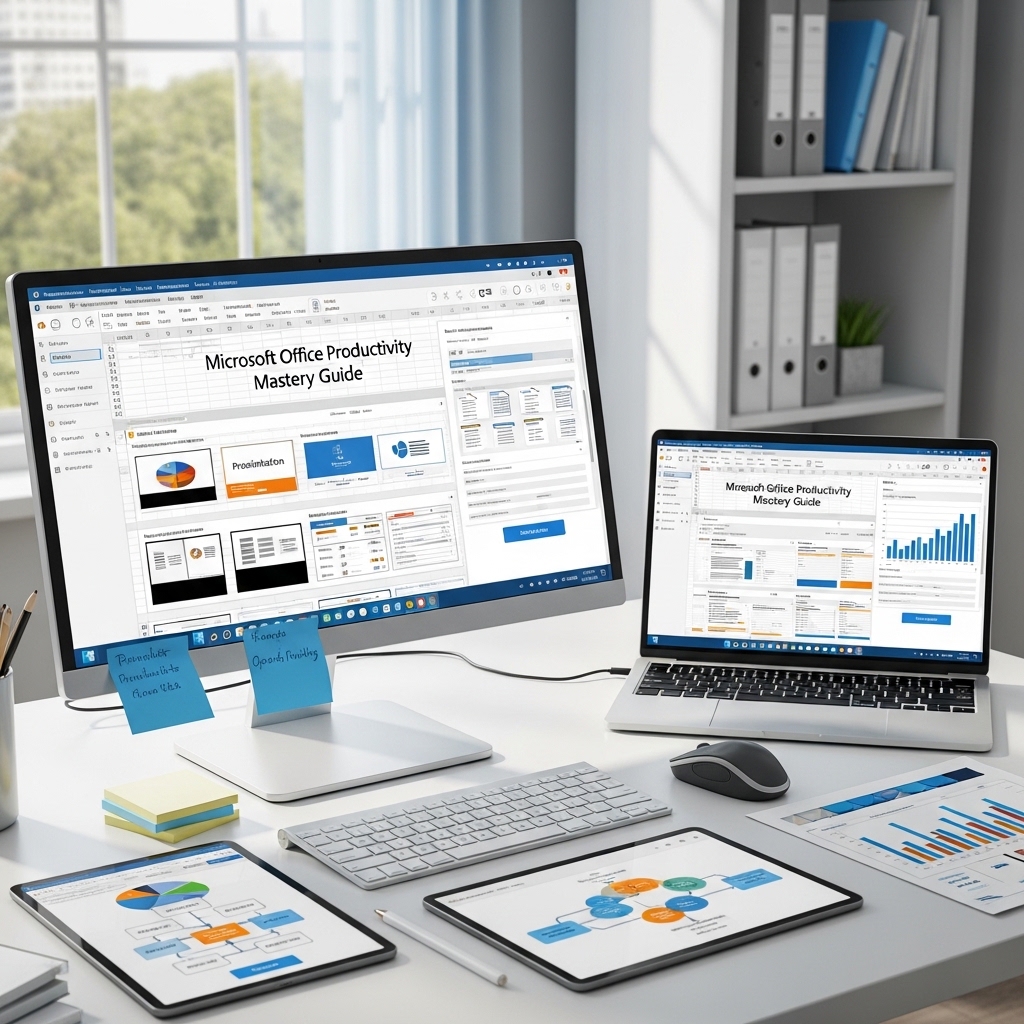
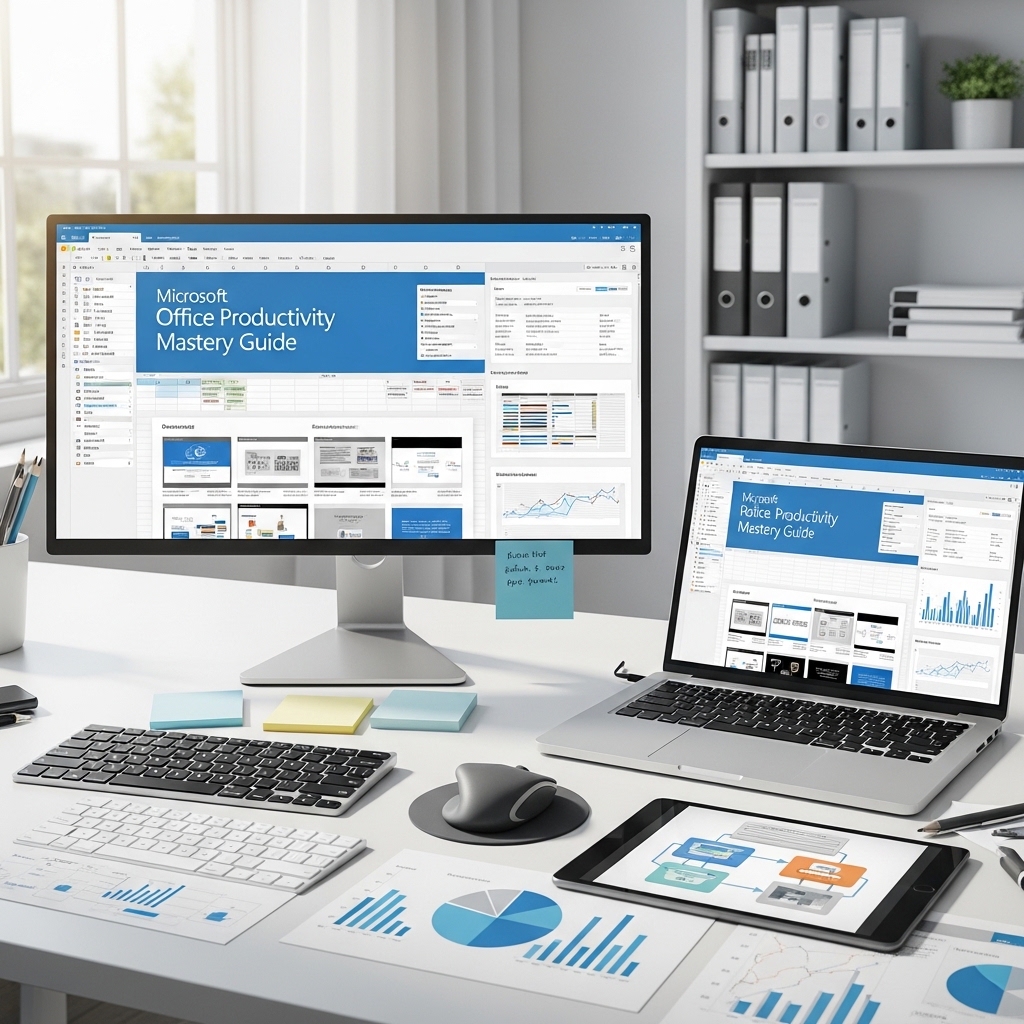
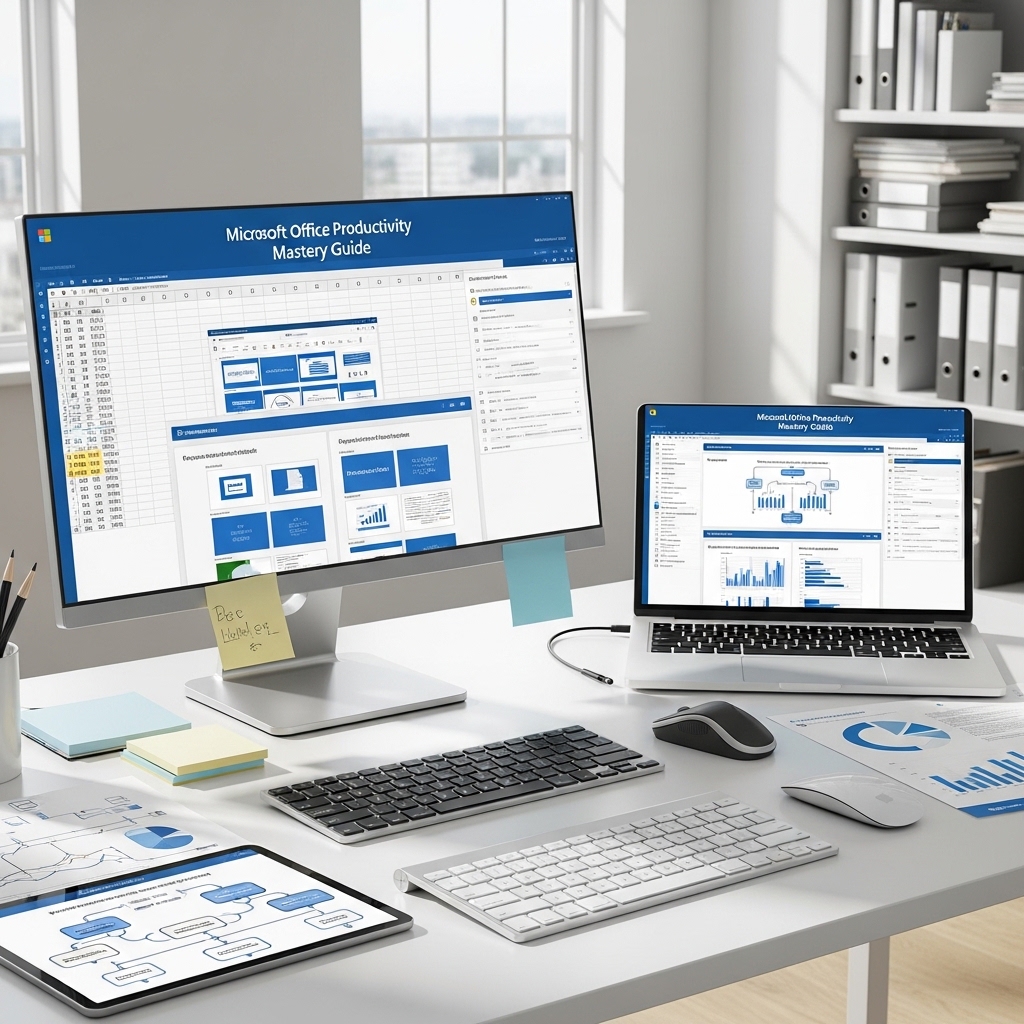
Microsoft Office Productivity Mastery Guide
The Practical, Professional-Level Training Reference for Word, Excel, Outlook, and PowerPoint in Administrative Roles
💻 A CONFESSION THAT MOST OFFICE PROFESSIONALS RECOGNIZE IMMEDIATELY
You use Microsoft Office every day. You have used it for years. And there are things it can do that would save you significant time — that you have never learned, because they never came up in a training session, because you always found a manual workaround, because you did not know the feature existed.
The mail merge that processes 200 personalized letters in four minutes — instead of manually changing the name on each one. The Excel formula that categorizes a list automatically — instead of sorting it by hand for twenty minutes. The Outlook rule that files a category of emails the moment they arrive — instead of spending part of each morning organizing the inbox. The PowerPoint master slide that updates every slide in the presentation with one edit — instead of going through fifty slides individually.
These are not advanced features reserved for technical specialists. They are the standard professional proficiency features that save administrative professionals hours every week when they know them — and cost hours every week when they do not.
This guide teaches them all. Organized by application. Structured from foundational through advanced. Written for the working administrative professional, not for a computer science student.
📥 Instant digital download. The complete professional Office reference is yours immediately.
WHAT THE GUIDE COVERS — APPLICATION BY APPLICATION
SECTION ONE: MICROSOFT WORD 📄
From competent to professional-standard
Styles and Formatting Architecture Why using Styles instead of manual formatting changes everything: the automatic Table of Contents that generates and updates itself, the document-wide formatting change that takes three seconds instead of thirty minutes of find-and-replace, and the consistent professional appearance across long documents that manual formatting cannot reliably produce. The complete guide to creating, modifying, and applying Styles in professional documents.
Mail Merge Mastery The mail merge workflow from data source to finished output. Letters, envelopes, labels, and email merges. The conditional merge field that personalizes content based on data values. The preview and error-checking procedure. The technique that processes two hundred personalized letters in the time manual production would take to complete ten.
Track Changes and Document Collaboration The Track Changes workflow for professional document review and amendment. The accept/reject protocol. The comment thread system for multi-party document collaboration. The version comparison tool for identifying differences between two document versions. The document protection settings that restrict editing to specific sections.
Advanced Formatting and Layout Section breaks and the formatting independence they create. Multi-column layouts. The header and footer system including section-specific headers. The table of figures and cross-reference system for technical and formal documents. The styles-based automatic table of contents — the feature that makes long administrative documents genuinely navigable. ✏️
SECTION TWO: MICROSOFT EXCEL 📊
From data entry to genuine analytical capability
The Formula Foundations That Everything Else Builds On Absolute versus relative cell references — the distinction that most Excel users never fully understand and that underlies every formula that does not work as expected. The SUM, AVERAGE, COUNT, COUNTA, and COUNTIF functions at professional standard. The IF function and nested IF logic. The IFERROR wrapper that prevents broken formulas from displaying error codes in professional documents.
The Lookup Functions — VLOOKUP, HLOOKUP, and INDEX-MATCH The lookup function that retrieves specific information from a data table. The four arguments explained completely. The most common VLOOKUP errors and how to prevent them. The INDEX-MATCH combination that does what VLOOKUP cannot: look left, handle column insertions, and manage larger data sets more efficiently.
Data Management and Analysis Sorting and filtering at professional standard. The AutoFilter for rapid data views. The Table format and its automatic extension to new data. The Remove Duplicates function. PivotTables — the single most powerful analytical tool in Excel for administrative data management — from creation through formatting through interpretation. The PivotChart for visual data presentation.
Professional Formatting and Presentation Conditional formatting — the color-coding that makes patterns visible in data sets without manual review. The custom number format that displays financial data, dates, and codes in exactly the format the organization uses. Print area management and the print settings that produce clean, professional printed output from complex spreadsheets. 📈
SECTION THREE: MICROSOFT OUTLOOK 📧
From email management to communication control
The Inbox Zero Architecture The folder structure, the rule system, and the flag-and-category workflow that prevents email from becoming an unmanageable liability. Rules that automatically file newsletters, FYI copies, and automated notifications on arrival — leaving the inbox for communications that actually require attention. The search folder that surfaces any category of email instantly regardless of where it is filed.
Calendar Management at Professional Standard Recurring appointment management including the exception handling for recurring series. Meeting request response workflow. Shared calendar visibility and management for executive support roles. The calendar overlay view for managing multiple calendars simultaneously. Resource and room booking through Outlook. Time zone management for international scheduling. Scheduling Assistant — the feature that finds the first available time slot across multiple calendars automatically.
The Tasks and To-Do System Outlook Tasks versus To-Do — the distinction and the appropriate use case for each. The task assignment workflow for delegating and tracking actions. The integration between email, calendar, and tasks that makes Outlook a complete workflow management system rather than just an email client.
Professional Email Management Email templates for frequently sent communications. The Quick Parts gallery for inserting standard text blocks instantly. Signature management for different communication contexts. The Delay Send function for controlling email timing. 🗓️
SECTION FOUR: MICROSOFT POWERPOINT 🖥️
From adequate slides to professional presentations
The Slide Master System The feature that changes every aspect of PowerPoint proficiency: the Slide Master that sets design, fonts, colors, and layout across every slide in the presentation from one location. How to set up a Slide Master from a brand template. How to make a global formatting change in thirty seconds rather than across fifty individual slides.
Visual Hierarchy and Slide Design Principles The visual hierarchy principle applied to slide design: one key message per slide, supported by evidence arranged in visual priority order. The rule of three for bullet points. The contrast principle for readability. The alignment grid. Why most presentation slides contain too much text and how to edit for maximum impact.
Data Visualization in Presentations Chart type selection by data type and message. The data table versus the chart — when each serves the presentation better. The chart formatting that communicates rather than decorates. The embedded Excel chart that updates automatically when the source data changes.
Presentation Preparation and Delivery Support The presenter notes system. The presentation rehearsal timing tool. The PDF export for distribution. The accessibility checker for presentations distributed to diverse audiences. The handout layout options. 🎯
📂 COMPLETE FILE LIST
📚 Complete guide PDF — all four applications (print-optimized, A4 and US Letter) | 📋 Quick-reference cards by application — laminate-ready (Word, Excel, Outlook, PowerPoint) | ⌨️ Keyboard shortcut master list — all four applications (PDF) | 📊 Practice exercises with answer files (editable) | 💡 Troubleshooting guide for 30 most common Office problems (PDF)
100% digital. Instant download. The Office skills that save hours per week — documented, explained, and ready to apply.

Reviews
There are no reviews yet.